
Airtel officially updated its terms in July 2026 to block hotspot sharing on unlimited 5G data plans. This guide explains exactly how Airtel and Jio detect tethering, and provides step-by-step fixes for Windows, Mac, and Linux to get your laptop back on unlimited 5G through your phone’s hotspot.

Why Airtel Blocked Hotspot on Unlimited 5G and What Jio Is Doing Differently
Airtel’s unlimited 5G plan no longer allows hotspot sharing as of July 2026, confirmed by a Terms and Conditions update on their official website. Jio currently still permits hotspot on eligible unlimited plans within True 5G coverage areas.
The situation changed suddenly for millions of Airtel subscribers. A clause appeared on Airtel’s website on July 16, 2026, reading: “Sharing of Data where the customer has activated the Unlimited 5G Data shall not be allowed via mobile hotspots.” Users who had been tethering their laptops for months suddenly found their data cutting out or getting deducted from their regular daily limit instead of the unlimited bucket.
Airtel’s July 2026 Terms & Conditions
Airtel’s updated terms state that the unlimited 5G data benefit works only for personal use on the smartphone holding the SIM card. When you connect a laptop, tablet, smart TV, or streaming stick to your phone’s hotspot, traffic from those devices gets blocked from accessing the unlimited 5G bucket. Your phone then falls back to your regular daily data allowance (1.5GB or 2GB per day, depending on your plan).
The clause specifically targets the unlimited 5G data benefit. Your regular daily data allowance still works through hotspot as it always did. What is gone is the ability to pipe the unlimited 5G bandwidth to a second device.
Does Jio Allow Hotspot on Unlimited 5G Right Now?
Yes. Jio currently allows hotspot sharing on unlimited 5G data on eligible prepaid plans of Rs 349 and above, within Jio True 5G coverage areas. Jio’s terms state the data is for personal and non-commercial use, but Jio does not technically enforce a hotspot block at this time. This is the key difference between the two carriers in July 2026.
Experts predict Jio will eventually implement similar restrictions as its network load increases. For now, Jio users are not affected by this specific issue.
300GB FUP Cap
Both Airtel and Jio enforce a Fair Usage Policy (FUP) cap of 300GB per month on unlimited 5G data plans. FUP is a data ceiling applied within any 30-day billing cycle. Traffic used directly on the phone counts against the 300GB FUP cap. After 300GB, Airtel retains the right to throttle speeds or reclassify the account as commercial usage.
Hotspot traffic from tethered devices, under the new Airtel rules, no longer draws from this unlimited bucket at all. It draws from your regular daily limit instead.
How Airtel and Jio Actually Detect That You Are Using a Hotspot
ISPs detect hotspot usage by reading three technical signals embedded in every data packet: the TTL counter value, the IPv6 address assigned to the connected device, and traffic patterns visible through deep packet inspection.
You do not need to install any extra app for Airtel to detect your hotspot. The detection happens entirely at the network level, by reading information that every data packet automatically carries. Your phone acts as a router between your laptop and Airtel’s towers, and that routing process leaves visible traces in every outgoing packet.
1. TTL Tracking
TTL, short for Time-To-Live, is a counter built into every internet data packet. It prevents packets from circulating endlessly on the internet by limiting the number of network devices (hops) they can pass through. Every router a packet crosses subtracts 1 from the TTL counter.
Native smartphone traffic leaves the phone with a TTL value of 64. When a laptop sends a packet through a phone hotspot, the phone acts as a router and subtracts 1 from the TTL. The packet arrives at Airtel’s tower with a TTL of 63, which immediately signals that a second device is involved.
This is the simplest and most reliable detection method Airtel uses. A TTL of 63 tells the network that the traffic passed through one extra router (the phone acting as a hotspot) before reaching the tower. Native phone traffic never has a TTL of 63 at the tower because there is no intermediate router between the phone and the tower.
Windows computers have a default TTL of 128. Android and iOS devices both have a default TTL of 64. When a Windows laptop connects via hotspot, the phone decrements the TTL from 128 to 127. Airtel sees 127 at the tower, a number that confirms a Windows device is tethered.
2. IPv6 Fingerprinting
IPv6 is the newer version of internet addressing that assigns a unique address to every internet-connected device. When your laptop connects to a mobile hotspot, it requests its own separate IPv6 address from the carrier’s network. This IPv6 address is different from the phone’s primary mobile network address.
Airtel’s network sees two distinct IPv6 addresses on a single SIM connection: one for the phone and one for the tethered laptop. This difference confirms that a secondary device is active on the connection. No native phone-only session produces two simultaneous IPv6 addresses.
3. Deep Packet Inspection
Deep Packet Inspection (DPI) is a technology that analyzes the content of data packets beyond the header information. An ISP using DPI reads what types of requests your device is making, not just where packets are coming from.
DPI flags desktop-exclusive background traffic as proof that a computer (not a phone) is the source of the connection. A smartphone running Instagram, YouTube, or Chrome never pings servers for Windows Update, Microsoft telemetry, Adobe Creative Cloud sync, or macOS system services. These are requests that only desktop operating systems generate automatically in the background.
DPI is the most expensive detection method to run at scale, so carriers use TTL tracking first and DPI only when TTL tracking alone is not enough or when usage patterns suggest commercial resale.
Why Airtel Detects Hotspot More Aggressively Than Jio (NSA vs SA Architecture)
Airtel uses a 5G NSA (Non-Standalone) architecture. NSA means Airtel’s 5G network piggybacks on its existing 4G LTE core for all signaling and control functions. The 4G core has been running DPI and TTL tracking tools for years. When 5G traffic passes through this 4G core, all existing monitoring infrastructure applies automatically.
Jio uses 5G SA (Standalone) architecture, meaning Jio operates a dedicated 5G core network that handles signaling independently. This newer architecture was designed with different traffic management priorities. Jio’s SA core currently applies less aggressive hotspot detection enforcement compared to Airtel’s mature 4G-based NSA infrastructure.
This architectural difference explains why many Jio users tether freely today while Airtel users face hard blocks on the same unlimited data benefit.
The TTL 65 Fix
Setting your laptop’s outgoing TTL to 65 forces packets to arrive at Airtel’s tower with a TTL of 64 after the phone decrements it by 1. A TTL of 64 matches native smartphone traffic, so the ISP’s detection system sees no evidence of a tethered device.
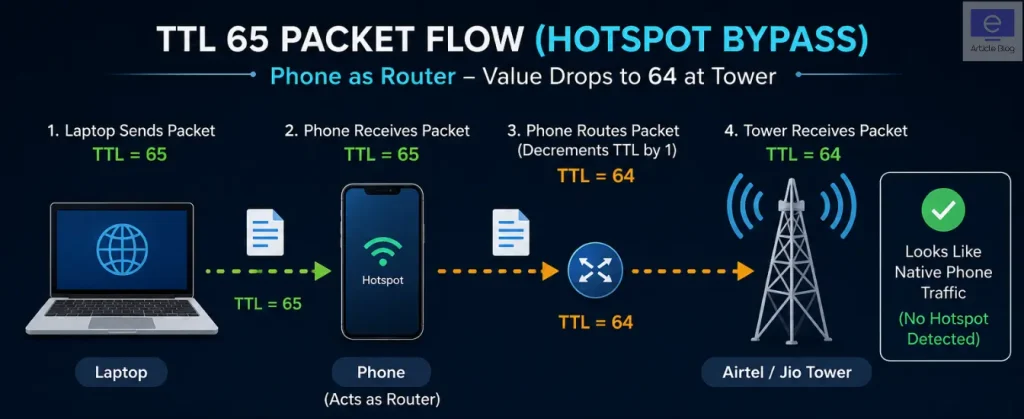
This fix directly counters the primary detection method (TTL tracking). It does not require any third-party software. It is a built-in network setting on Windows, Mac, and Linux. The change takes effect immediately after restarting the computer or reconnecting to the hotspot.
How the TTL 65 Trick Works
Your laptop sends a packet with TTL 65. The phone receives that packet and subtracts 1 as part of its normal routing process. The packet leaves the phone with TTL 64. Airtel’s tower receives a packet with TTL 64, which is identical to what a native smartphone generates. The detection filter does not trigger.
The fix does not change how fast your data travels. It does not break any other network functionality. The only change is the starting counter value on outgoing packets from your laptop.
Windows Fix: Temporary Command Prompt Method
This method sets TTL to 65 until you restart the computer. Use it for a quick test before making a permanent registry change.
Steps:
- Press the Windows key, type cmd, right-click Command Prompt, and select Run as administrator.
- Paste the following command exactly and press Enter:
netsh interface ipv4 set global defaultcurhoplimit=65- Wait for the response to display Ok.
- Disconnect from the hotspot and reconnect.
To revert this change, run the same command but replace 65 with 128 (the Windows default TTL value).
Windows Fix: Permanent Registry Editor Method
This method persists across restarts. It writes the TTL value directly into the Windows registry so the setting loads every time the computer boots.

Steps:
- Press Windows key + R, type regedit, and press Enter.
- Navigate to this path in the left panel:
HKEY_LOCAL_MACHINE\SYSTEM\CurrentControlSet\Services\Tcpip\Parameters- Right-click in the empty space on the right side of the window.
- Select New and then DWORD (32-bit) Value.
- Name the new value exactly: DefaultTTL
- Double-click DefaultTTL to open its edit window.
- Select Decimal under Base.
- Type 65 in the Value Data field.
- Click OK and close Registry Editor.
- Restart the computer.
To revert, navigate back to the same registry path, right-click DefaultTTL, and select Delete. Windows returns to its default TTL of 128.
Mac Fix: Terminal Method and How to Make It Stick After Restart
The standard Terminal command sets TTL on Mac but resets after each restart. The LaunchDaemon plist method makes it permanent.
Temporary method (resets on restart):
- Open Terminal from Applications > Utilities > Terminal.
- Run this command and press Enter:
sudo sysctl -w net.inet.ip.ttl=65- Enter your Mac administrator password when prompted.
- Reconnect to the hotspot.
Permanent method (persists after restart):
- Open Terminal.
- Run:
sudo nano /Library/LaunchDaemons/com.custom.ttl.plist- Paste this content into the file:
xml
   <?xml version="1.0" encoding="UTF-8"?>
   <!DOCTYPE plist PUBLIC "-//Apple//DTD PLIST 1.0//EN"
     "http://www.apple.com/DTDs/PropertyList-1.0.dtd">
   <plist version="1.0">
   <dict>
     <key>Label</key>
     <string>com.custom.ttl</string>
     <key>ProgramArguments</key>
     <array>
       <string>/usr/sbin/sysctl</string>
       <string>-w</string>
       <string>net.inet.ip.ttl=65</string>
     </array>
     <key>RunAtLoad</key>
     <true/>
   </dict>
</plist>- Press Control + X, then Y, then Enter to save the file.
- Restart the Mac.
Linux Fix: Terminal and sysctl.conf Method
Temporary method:
sudo sysctl -w net.ipv4.ip_default_ttl=65Permanent method:
- Open Terminal.
- Run:
sudo nano /etc/sysctl.conf- Add this line at the bottom of the file:
net.ipv4.ip_default_ttl=65- Press Control + X, then Y, then Enter to save.
- Run:
sudo sysctl -p- The TTL change now persists across restarts.
How to Revert the TTL Change Back to Default
- Windows CMD: Run
netsh interface ipv4 set global defaultcurhoplimit=128 - Windows Registry: Delete the DefaultTTL value from the Parameters key
- Mac (temporary): Run
sudo sysctl -w net.inet.ip.ttl=64 - Mac (permanent): Delete the plist file from
/Library/LaunchDaemons/ - Linux: Remove the
net.ipv4.ip_default_ttl=65line from/etc/sysctl.confand runsudo sysctl -p
Fixes for Advanced Detection
When TTL modification alone fails to restore hotspot access, Airtel is using secondary detection methods: IPv6 fingerprinting or deep packet inspection. Combining the TTL 65 fix with IPv6 disabling and a VPN addresses all three detection layers simultaneously.
The TTL fix handles the primary detection method. Disabling IPv6 blocks the secondary method. A VPN encrypts traffic to defeat DPI. All three methods together create the most complete solution available for persistent detection evasion.
How to Disable IPv6 on Windows for Your Hotspot Connection

- Press Windows key + R, type ncpa.cpl, and press Enter.
- Right-click your Wi-Fi adapter (the hotspot connection) and select Properties.
- Scroll down in the list and find Internet Protocol Version 6 (TCP/IPv6).
- Uncheck the checkbox next to it.
- Click OK.
- Disconnect and reconnect to the hotspot.
This removes the separate IPv6 address your laptop was requesting from Airtel’s network. Your connection runs on IPv4 only, which behaves identically to how the phone itself connects.
USB Tethering vs Wi-Fi Hotspot
USB tethering creates a different network profile at the carrier level than Wi-Fi hotspot does. When you connect your phone to a laptop via a USB cable and enable USB tethering, the phone presents the connection as a USB network adapter rather than a wireless access point. This different presentation often evades basic TTL detection filters configured specifically for Wi-Fi hotspot traffic patterns.
USB tethering is not immune to DPI or IPv6 fingerprinting. It is a useful first alternative to try when Wi-Fi hotspot gets blocked immediately after applying the TTL fix.
Using a VPN With the TTL Trick
A VPN (Virtual Private Network) encrypts all traffic from your laptop before it reaches Airtel’s network. This encryption prevents DPI from reading the content of your packets. Airtel cannot see that you are making Windows Update requests, Microsoft telemetry connections, or any other desktop-specific traffic signatures.
Important: A VPN alone does not fix the TTL issue. The TTL header exists outside the VPN tunnel and remains visible to Airtel even when a VPN is active. The correct sequence is to apply the TTL 65 fix first, then connect through a VPN.
The TTL 65 fix plus a VPN together address all three detection methods:
- TTL tracking: countered by TTL 65 fix
- IPv6 fingerprinting: handled by disabling IPv6 or by a VPN that forces IPv4
- Deep Packet Inspection: blocked by VPN encryption
Troubleshooting
Three common reasons the TTL fix fails are: the setting did not persist after restart, the ISP is running DPI in addition to TTL checks, or an APN mismatch is forcing hotspot traffic through a separate carrier data channel.
TTL Setting Not Persisting After Restart on Windows
The Command Prompt method (netsh) does not survive a system restart. The Registry Editor method (DefaultTTL key) is the only permanent solution on Windows. After applying the registry fix, verify it worked by opening Command Prompt and running:
netsh interface ipv4 show globalLook for the DefaultCurrentHopLimit value in the output. It should read 65. A value of 128 means the registry change did not apply correctly. Go back through the registry steps and confirm you selected Decimal as the base when entering 65.
Still Getting Throttled or Capped After the TTL Change
The TTL fix addresses TTL tracking only. Airtel running active DPI on the connection makes the fix alone insufficient. Add these steps in order:
- Disable IPv6 on the Wi-Fi adapter (steps listed above).
- Connect through a VPN on the laptop before loading any web traffic.
- Switch from Wi-Fi hotspot to USB tethering.
After all three changes are in place, disconnect the phone from the hotspot completely, enable airplane mode for 10 seconds, disable airplane mode, and re-enable the hotspot. This refreshes the network session and forces a new IP assignment.
Data Is Going Through But Speed Is Still Slow
Slow speed after the TTL fix is typically not a detection issue. It is either a coverage problem (5G signal is weak at your location) or Fair Usage Policy throttling after crossing the 300GB monthly cap. Open the Airtel app and check your current cycle data usage. A VPN also reduces speed by 10 to 30 percent depending on server location and load. Choose a VPN server in India rather than a distant international server to minimize speed loss.
Should You Just Switch to Jio?
Yes, switching to Jio is the most straightforward option for users who depend on hotspot tethering daily. Jio’s True 5G SA architecture currently does not enforce a hotspot block on unlimited 5G plans, and eligible plans starting at Rs 349 cover 2GB per day with unlimited 5G in True 5G coverage areas.
The decision depends on coverage at your specific location. Airtel’s 5G Plus (NSA) network covers more cities and areas because NSA architecture deploys faster using existing 4G infrastructure. Jio’s True 5G (SA) coverage is more concentrated in select areas within major metros. Before switching, check Jio’s True 5G coverage map for your daily locations.
For users in strong Jio True 5G coverage areas who require daily laptop tethering, switching removes the need for any of the technical fixes described in this guide entirely. For users outside Jio True 5G coverage, the TTL fix on Airtel remains the more practical option.
Frequently Asked Questions
Does Airtel actually detect and block hotspot, or is the ban just on paper right now?
Airtel has added the hotspot restriction to its official terms as of July 2026. Reports from users are mixed: some report immediate blocking of hotspot on unlimited data, while others report no enforcement so far. The technical infrastructure for detection (TTL tracking, DPI) exists on Airtel’s NSA network. Enforcement is more consistent for high-usage accounts that regularly cross large data thresholds.
Will my Airtel account get suspended for using these workarounds?
Account suspension for personal hotspot use is rare. Airtel targets commercial resale and unusually heavy usage rather than individual tethering sessions. The more likely consequence is speed throttling or redirection of hotspot traffic to your regular daily data limit, not a full suspension.
Does the TTL 65 trick work when an Android phone is tethering to another Android phone?
The TTL fix targets the tethered device (laptop or secondary phone), not the phone sharing the hotspot. An Android client device also has a default TTL of 64. A packet from an Android client sent through a hotspot arrives at the tower with TTL 63, the same detection trigger as a laptop. Fixing this on an unrooted Android client requires a VPN instead, since root access is needed to modify TTL at the OS level on Android.
Is bypassing hotspot detection illegal in India?
No. Modifying TTL settings on your own device is not illegal under Indian law. Using a VPN is legal in India. The issue is a civil Terms of Service matter between you and your carrier, not a criminal or regulatory matter. TRAI’s net neutrality guidelines raise additional questions about whether ISPs can restrict how subscribers use data they have paid for, though no specific ruling covers this individual-use scenario.
Does the TTL trick work for Jio too?
Jio does not currently enforce a hotspot block on unlimited 5G. The TTL fix is not required for Jio users as of July 2026. The fix addresses a specific detection mechanism that Jio is not actively using for enforcement on personal tethering.
How do I know if Airtel is throttling my hotspot or fully blocking it?
Run a speed test directly on your phone without hotspot enabled. Then run the same speed test on your laptop through the hotspot. A large speed gap between the two results (phone fast, laptop slow) confirms Airtel is redirecting or throttling the hotspot traffic. If the speed test on the laptop shows almost zero Mbps while the phone’s direct speed is normal, the unlimited 5G traffic is being fully blocked for the hotspot session.
What is the best approach to pick a VPN for mobile hotspot use in India?
Any VPN using the WireGuard protocol provides the least speed loss compared to older OpenVPN-based solutions. Choose servers located in India or nearby regions like Singapore to reduce latency on a mobile connection. The specific VPN brand matters less than whether it successfully establishes an encrypted tunnel before Airtel’s DPI layer reads the outgoing desktop traffic patterns.
Important Disclaimer
The methods described in this guide technically violate Airtel’s Terms and Conditions for its Unlimited 5G Data offer. Airtel’s terms explicitly prohibit hotspot sharing on the unlimited data benefit.
Telecom companies in India rarely suspend accounts for personal hotspot use. The more common response is throttling or redirection of hotspot traffic to the regular daily data limit. Airtel retains the right to alter, throttle, or suspend network access for accounts flagged as commercial users under its current terms.
Airtel actively patches its detection methods over time. A workaround that works today stops working after a network-side update. This is an ongoing situation, not a permanent fix.
These methods are shared for educational purposes. The guide explains network packet behavior, TTL mechanics, and standard operating system network settings, all of which are publicly documented technical knowledge. Readers are responsible for understanding the terms of their own telecom subscriptions before applying any of these steps.
Last updated: July 2026. Airtel’s enforcement of this policy is evolving. Check back for updates as carrier detection methods and workarounds change.
